
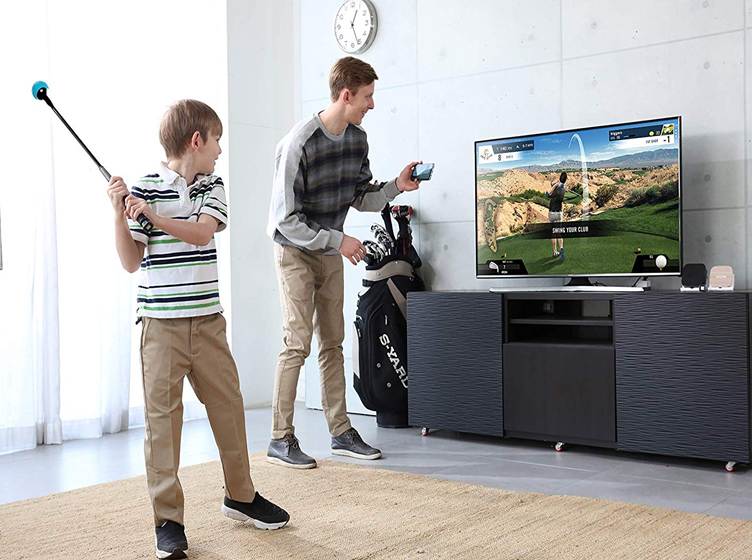
One of the best things about Phigolf 2 is its flexibility. Whether you want to practice in your living room, office, or even outdoors, connecting your golf simulator to different devices is simple and opens up a world of immersive gameplay. Here’s a step-by-step guide to get you started.
Step 1: Unbox and Prepare Your Phigolf 2
Before connecting, make sure you have all the necessary components:
- Phigolf 2 smart sensor
- Swing stick (or compatible golf club)
- Charging cable for the sensor
- Your smartphone, tablet, or TV
Charge the sensor fully and ensure the swing stick is assembled correctly. A fully prepared setup makes the connection process smooth.
Step 2: Download the Phigolf App
To access virtual courses and training programs, you’ll need the Phigolf app:
- Go to the App Store (iOS) or Google Play Store (Android).
- Search for “Phigolf” and download the app.
- Open the app and create an account or log in if you already have one.
The app is your central hub for tracking progress, accessing golf swing analysis, and choosing courses.
Step 3: Pairing with Your Smartphone
- Turn on the Phigolf sensor by pressing the power button.
- Enable Bluetooth on your smartphone.
- Open the Phigolf app and select “Connect Device.”
- Follow on-screen prompts to pair your sensor with your phone.
Once paired, your swings will be tracked in real-time, and you can view detailed metrics like swing speed, club path, face angle, and tempo.
Step 4: Connecting to a TV
If you want a bigger screen for a more immersive experience:
- Option 1: Use a smart TV that supports app mirroring. Mirror your smartphone screen to your TV.
- Option 2: Use an HDMI cable or casting device (like Chromecast or Apple TV) to display the app on your TV.
- Launch the Phigolf app on your smartphone and enjoy the larger view of the golf courses.
This setup makes your home feel like a professional golf simulator room without the need for expensive equipment.
Step 5: Troubleshooting Tips
- Ensure the sensor is fully charged and within Bluetooth range.
- Restart the app or device if pairing fails.
Make sure the app is updated to the latest version for optimal performance.
Once connected, you’re ready to play. The Phigolf 2 system gives you realistic ball trajectories, virtual golf courses, and interactive challenges directly from your living space.
Step 6: Start Practicing
With your device connected:
- Choose your course or training program.
- Warm up with basic swings to calibrate the sensor.
- Track your performance and watch improvements over time.
Phigolf 2 is not only a golf swing trainer indoor but also an all-in-one system for fun, practice, and even friendly competition.
Final Thoughts
Connecting Phigolf 2 to your smartphone, tablet, or TV is quick, easy, and opens up endless possibilities for indoor golf. Whether you’re practicing alone or competing with friends, this setup brings world-class golf experiences right into your home.